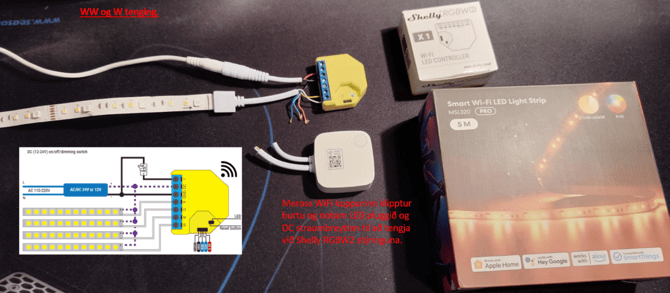
🌈 The Meross RGBWW LED strips offer full color (RGB) along with Warm White and Cool White in the same strip. Here's how to connect either the RGBW colors or the WW/W whites to Shelly.
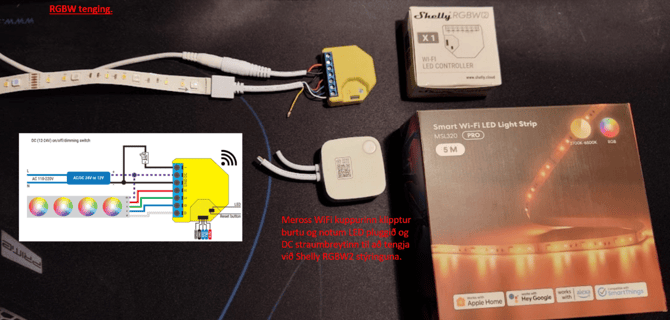
📶 The included Meross Wi-Fi controller is great, but if you want to integrate the LED strip into your Shelly system, you'll need to cut off the Meross controller and wire it to the Shelly RGBW2.
🎨 Wire color codes from the Meross Wi-Fi controller:
- ⚫ Black: +12V → Connect to DC on Shelly
- 🔴 Red: Red color → Connect to R on Shelly
- 🟢 Green: Green color → Connect to G on Shelly
- 🔵 Blue: Blue color → Connect to B on Shelly
- ⚪ White: Cool White → Connect to W on Shelly
- 🟡 Yellow: Warm White → Connect to W or B on Shelly (depending on setup)
🔌 Wire color codes from the Meross DC power supply:
- 🔴 Red: +12V → Connect to DC on Shelly
- ⚫ Black: Ground (–) → Connect to GND on Shelly
🔧 RGBW Connection
Use 4 color wires and leave out either the white or yellow wire, depending on whether you want Cool White or Warm White lighting.
🔧 WW Connection
Disconnect the RGB wires and connect:
- 🟡 Warm White (Yellow) → to B
- ⚪ Cool White (White) → to W
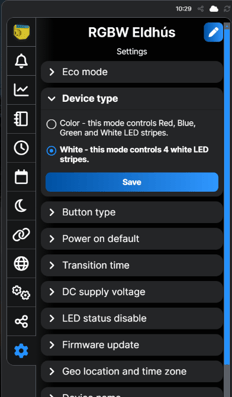
📱 In the Shelly app, go to Settings for the RGBW2 switch and set it to control four LED strips.
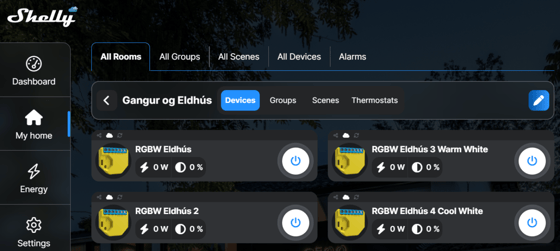
This creates four independent RGBW controllers.
Since the LED strip includes both Warm White and Cool White, you can control both white tones as if they were on separate LED strips.